
How to Make a Mind Movie in Canva
To make a mind movie in Canva, start a Video design, give each scene one image and one present-tense affirmation, set every scene to 3 to 5 seconds, add a track from Canva's audio library, and download it as an MP4. It is free, and your first one will take an hour or two.
If you are new to the idea, our guide on how to make a mind movie covers what a mind movie is and what belongs in it. This post is the hands-on Canva walkthrough, from blank page to a video on your phone.
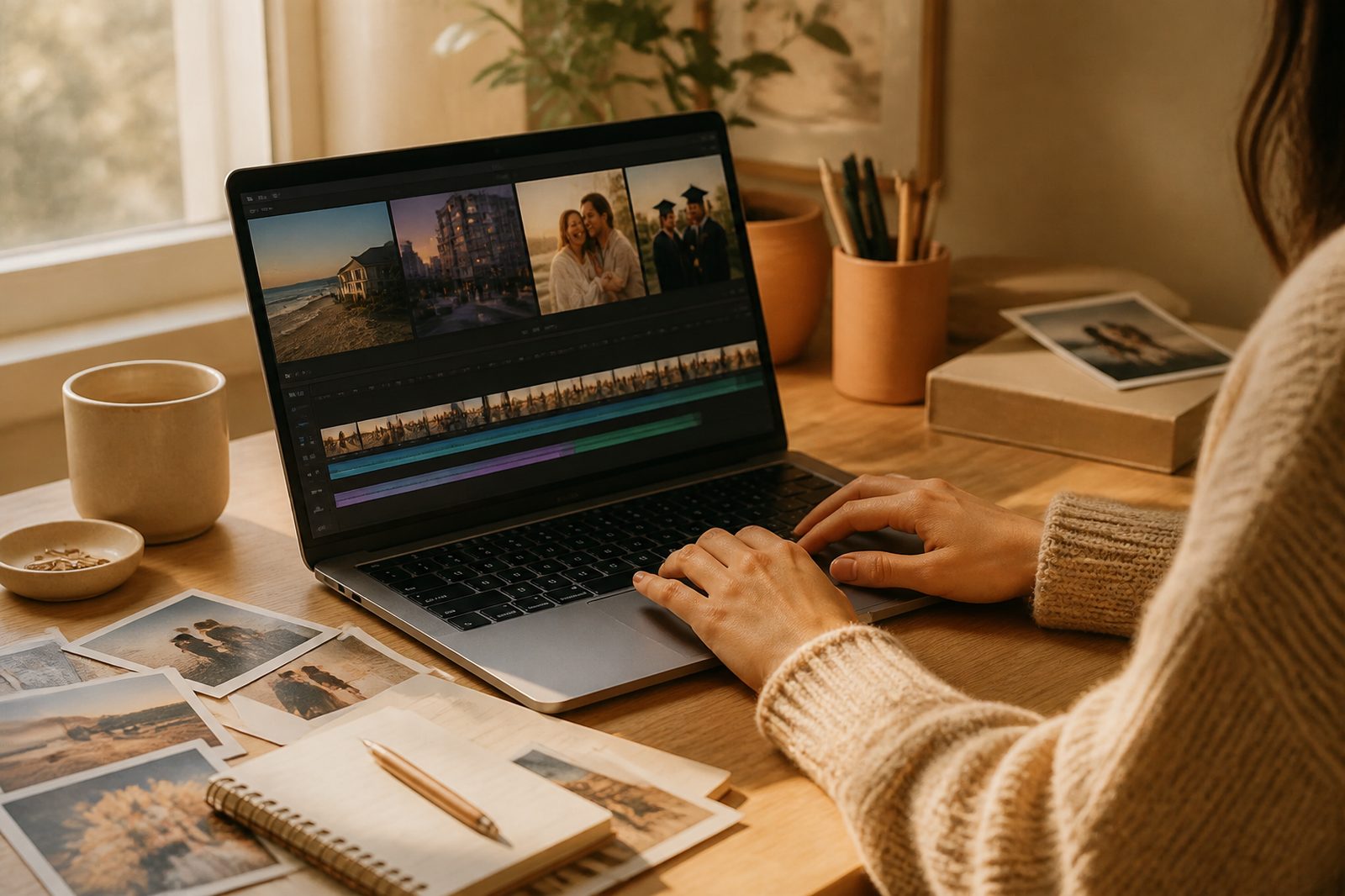
Plan it before you open Canva
The slowest way to make a mind movie is to open the editor and start searching for pictures. Spend ten minutes in your notes app first.
Pick three to five areas of your life you want the movie to cover, such as love, home, career, health, and travel. Under each one, write a few short affirmations in the present tense, as if it is already true: "I wake up in my sunny apartment by the sea." "I lead a team I am proud of." "I feel strong in my body." Each line becomes one scene, so it helps to picture the image as you write it.
Then decide on length. A common target is three to four minutes, short enough to watch twice a day without it feeling like a chore. Do the math, though: at four seconds per scene, three minutes is about 45 scenes. For a first version, 25 to 30 scenes, around two minutes, is completely fine. You can always add more later.
Step 1: Choose a template and size
On Canva's home page, search for "Video" and pick a size based on where you will watch it. A standard Video design is landscape (16:9), which looks best on a laptop or TV. Mobile Video is portrait (9:16) and fills your phone screen, which is where most people end up watching.
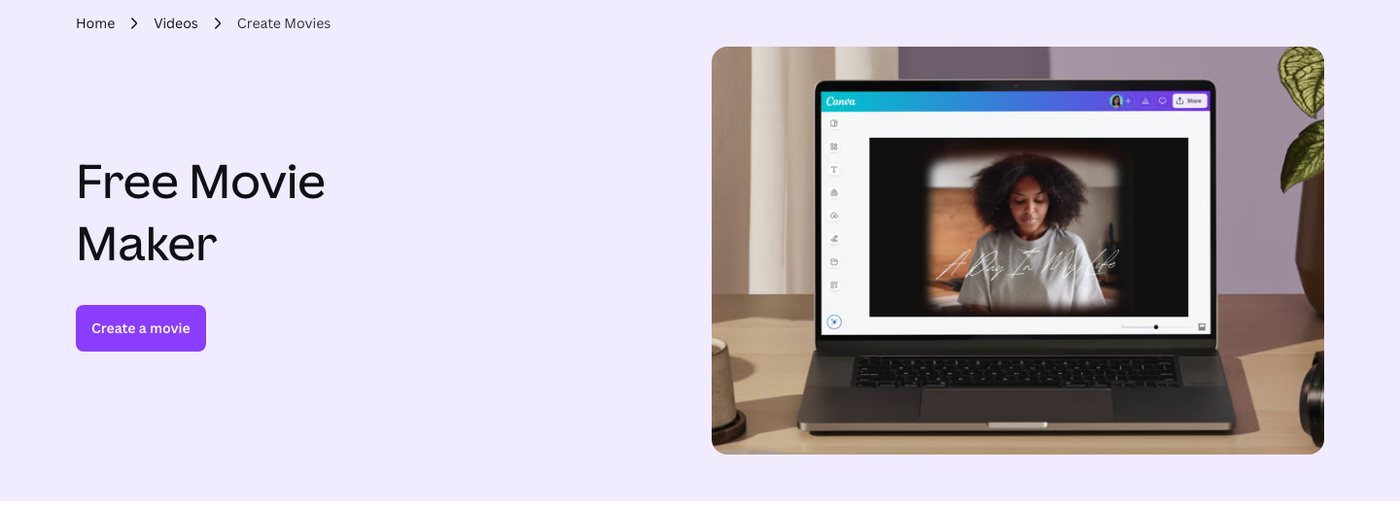
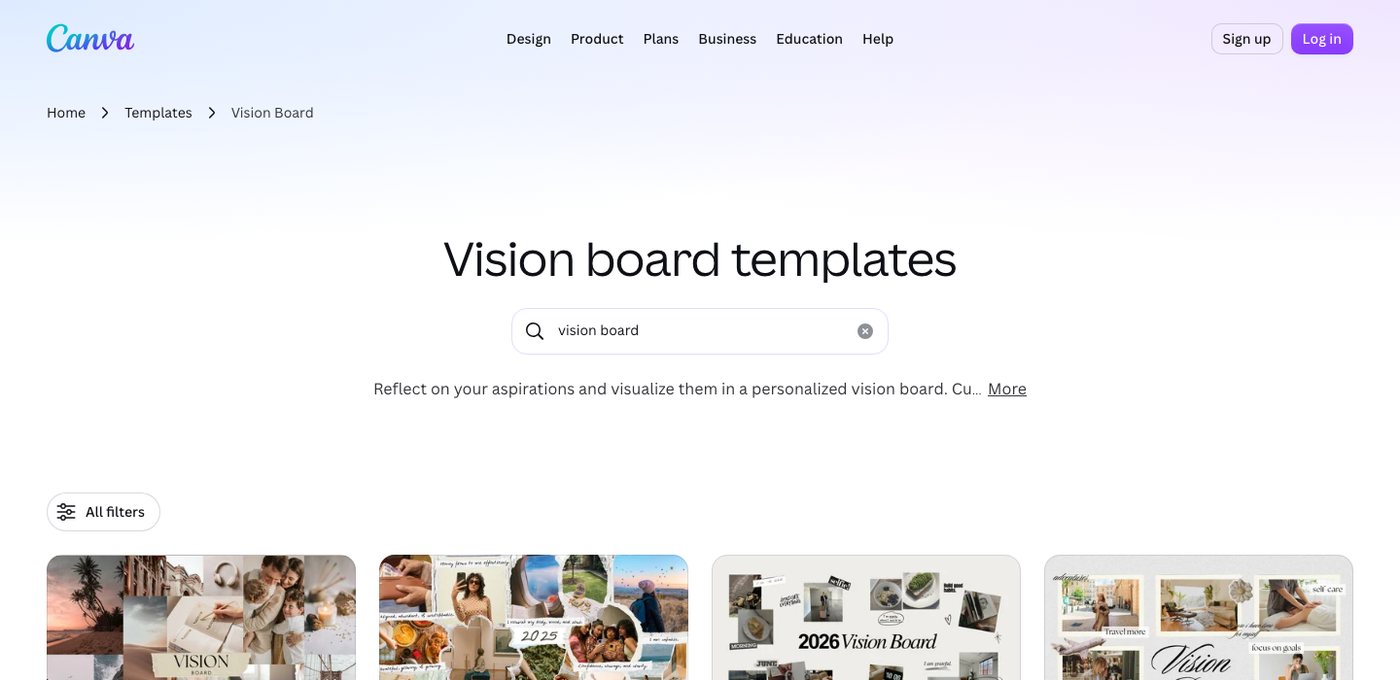
You can start blank or search the templates for "vision board video" to find collage-style layouts you can fill with your own images. Some templates and elements are Pro, so check before you build your whole movie around one.
If you find slides easier to work with, a Presentation design works too. You can set the timing of every slide at once, and Canva can download designs as video.
Step 2: Gather your images
This is where most of the time goes, so it is worth being deliberate.
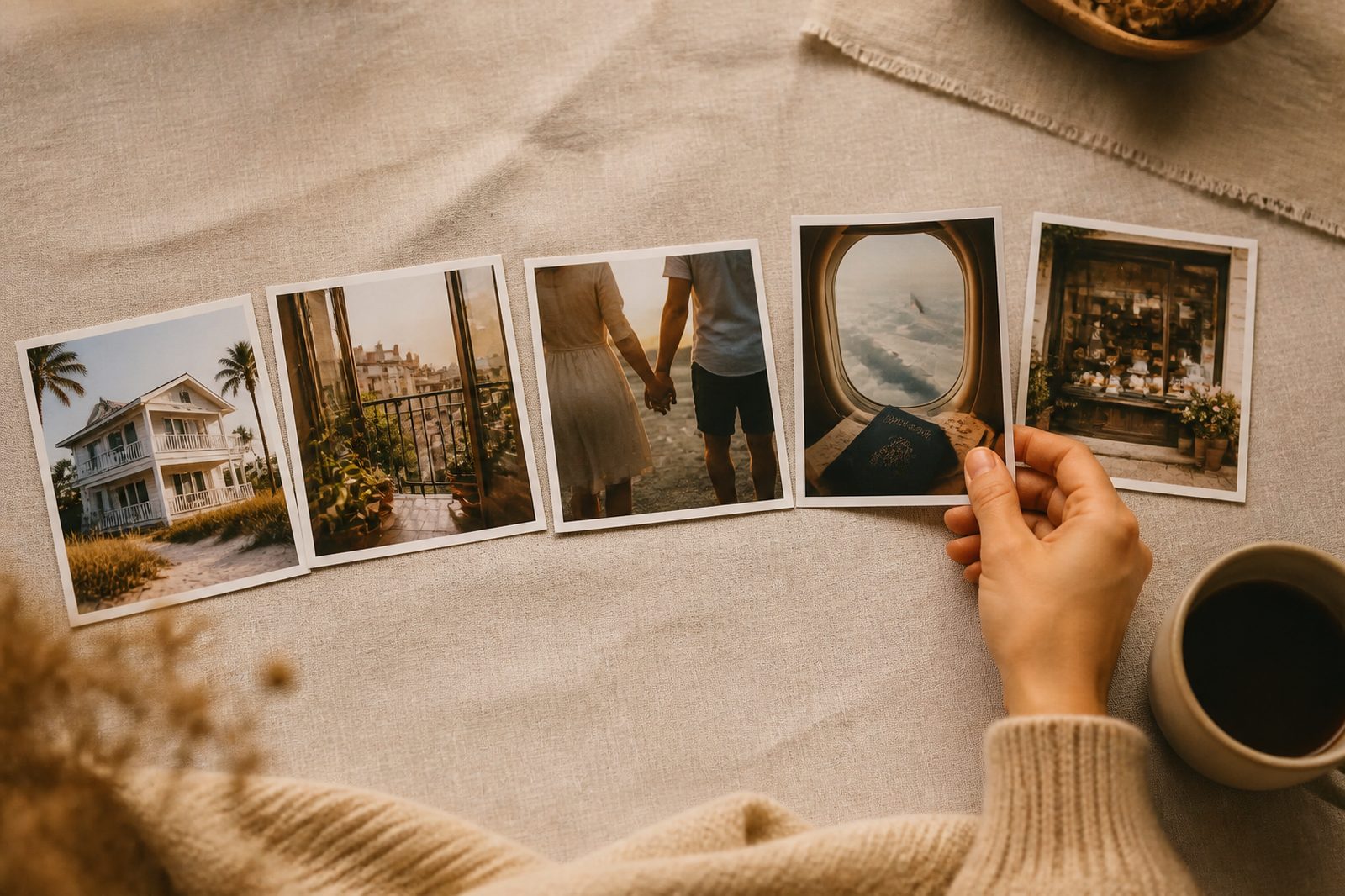
You have three good sources. Canva's own library, under Elements, has photos and short video clips you can search by mood or scene: "couple laughing in kitchen," "sunlit home office," "beach at golden hour." Your own photos are often the most powerful, because a picture of your actual city, your dog, or you at your happiest feels real in a way stock never does. Upload them through the Uploads tab. Free stock sites like Unsplash and Pexels fill the gaps.
Choose for feeling, not just facts. An image of keys on a kitchen counter in warm morning light says "my own home" more strongly than a generic house exterior. It also helps to keep a consistent tone across images, similar light and colors, so the movie feels like one life rather than a collage of strangers.
A quick note on rights: images you pull from Pinterest or a web search are fine to look at privately, but if you plan to post your mind movie publicly, stick to your own photos and properly licensed stock.
Step 3: Add one affirmation per scene
Give every scene a single line of text, and keep it short enough to read in a glance, ideally under ten words. Present tense, first person, and positive: "I am" and "I have," never "I will" or "I want."
Make the text easy to read. Use a large, clean font, place it where it does not cover a face, and if the image is busy, add a soft shadow or a semi-transparent shape behind the words. Using the same font and position on every scene makes the whole thing calmer to watch.
Step 4: Set the timing
In a Video design, the timeline sits at the bottom of the editor. Click a scene and drag its start or end edge to set the length. Three to five seconds per scene is the sweet spot: long enough to read the line twice and feel it, short enough to keep the movie moving.
In a Presentation, select a page and use the timing option on the toolbar, then apply the same duration to every page in one go.
For transitions, simple is better. A soft dissolve kept under a second, used the same way throughout, feels smooth. Flashy spins and zooms pull your attention to the editing instead of the life on screen.
This is the second slow part. Getting 30 to 45 scenes to feel right by hand takes real patience, so do a full pass, watch it once, and adjust only the scenes that feel rushed.
Step 5: Add music
Open the Audio tab in the side panel. You can filter tracks into Free and Pro, preview them, and drag one onto your timeline. Choose something that genuinely lifts you, and lean toward instrumentals so the lyrics do not compete with your affirmations. Trim the track to the length of your movie and add a fade out at the end so it does not cut off abruptly.
Be careful with licensing if your mind movie will ever leave your phone. Canva's stock tracks are covered by its content license, while popular music is only available on paid plans and limited to personal, non-commercial use. Canva explains the details on its licensing page. For a movie you only watch yourself, any track you enjoy is fine. For anything you post, check first.
Step 6: Download it as an MP4
When you are happy with it, select Share, then Download, and choose MP4 Video as the file type. Free accounts can download in full HD, which looks great on a phone.
Then put it somewhere you will actually see it. Save it to your camera roll, add it to your favorites, or move it into a folder on your home screen. If it takes four taps to find, you will stop watching it within a week.
How to watch it every day
The movie only matters if you watch it, so tie it to habits you already have. Most people watch once right after waking and once before bed. In the evening, try watching it, then closing your eyes and stepping into one scene as you drift off, which is the heart of the SATS method.
While it plays, feel each scene instead of just reading it. Notice what it would be like to stand in that kitchen or hear that news. Every month or so, refresh it: swap out scenes that no longer move you and add the next things you want.

Where Canva gets slow
Canva is a lovely tool if you enjoy the craft of it. The trade-offs are real, though. Finding images that match a very specific scene, like you and your partner on your own rooftop, can take longer than the rest of the project combined. Timing dozens of scenes by hand is fiddly. Every time your goal changes, you are back in the editor. And a sequence of still photos, however well chosen, does not move.
If you want to compare other routes, our Mind Movies alternatives page lays out Canva, CapCut, and apps side by side.
The faster option is the one we built. In SelfStudio on iPhone, you type your goal in one sentence, for example "I am engaged to Nick on our rooftop at sunset," and the app generates a moving mind movie of that scene, alongside a guided visualization and a subliminal for the same goal. There is no image hunting and no timeline. The mind movie is part of SelfStudio Pro.
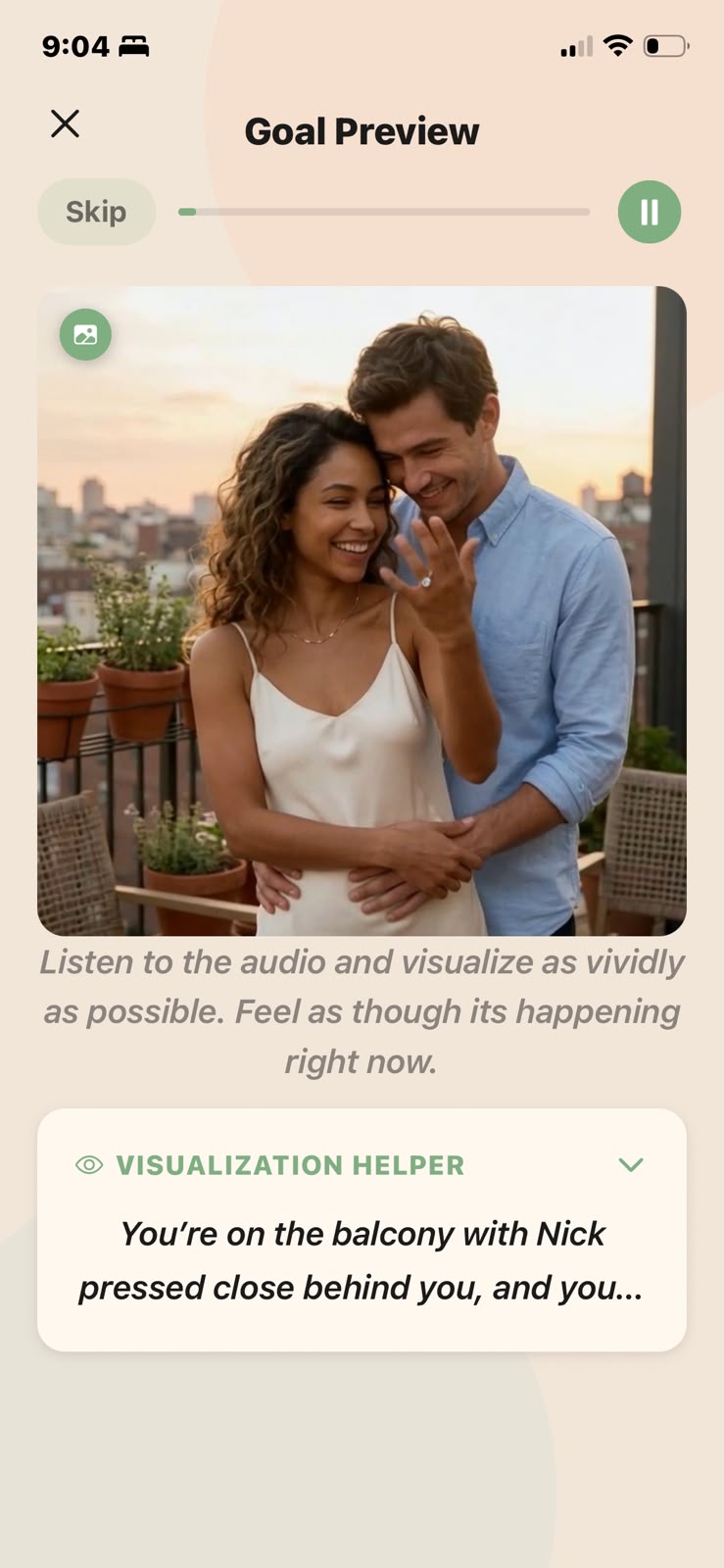
One sentence turned into a scene you can step into, no editing required.
Either way, the method is the same: a short movie of your life as you want it, watched with feeling, every day. Make it in Canva this weekend, or try SelfStudio on the App Store and start from one sentence.